Forget, & Reset Windows 10

Over time, Windows 10 can get bogged, cluttered with different apps, and settings, and can run a bit ruggedly. There’s a simple solution, that takes a little time, but can solve this problem. It’s called a Windows 10 Reset, which means your files will be saved, but apps, and settings will be reset to the original state when you got your PC. This is handy if you want to a fresh start, if you want to forget, & reset Windows 10. Below are the steps to follow to pull this off.

  1. Open settings. Click Start & then the gear icon.
  2. Click Update & Security.
  3. Click Recovery in the left pane.
  4. Click RESET THIS PC.
  5. Click KEEP MY FILES.

6. Click the link of a list of apps to reinstall after resetting, so you know what you need, then click back. Click RESET.

Once you’ve completed the reset, your PC will be in it’s original form, (Factory Default Settings). This is a good start, after all that trouble you were going through. Good luck.
PC Maintenance @ Home

These days, it’s pricey to take your computer to the best computer fixers in town. It’s important to take care of your computer while you’re using it, so you can avoid those hassels, or at least prolong the visit for a while. Below is a few things you can do to help maintain your PC at home.

  1. Defrag your system disk once a month.
  2. Do a Disk Cleanup Once a month.
  3. Organize your desktop screen.

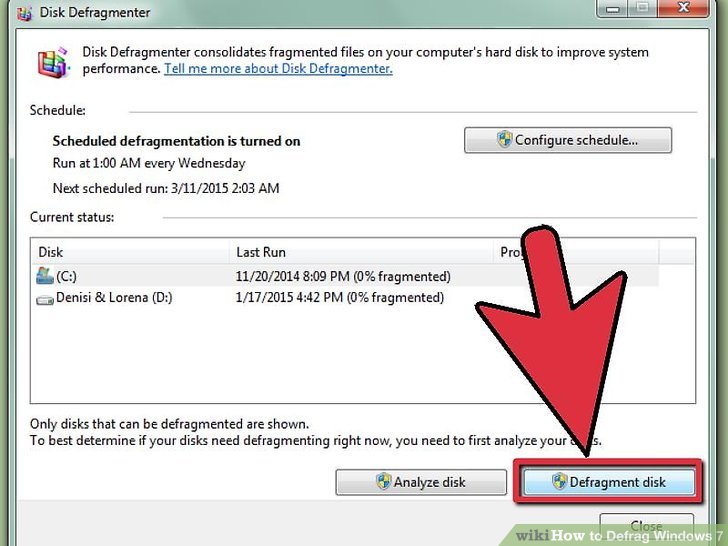
Defragging is not hard to do, but it is time consuming. The good news is, you can set it in motion to do it’s thing overnight, & it’ll be done by morning. Below is how to start the process for Windows 7 & 10 users.

Windows 10
1. In the search bar, (bottom left of screen), type defrag.
2. Click on defrag & optimize drives.
3. Click on DISK C.
4. Click OPTIMIZE.

Windows 7
1. Click on Start.
2. Type in DISK DEFRAG.
3. Click on DISK DEFRAGMENTER.
4. Click on DEFRAGMENT DISK, (lower right).

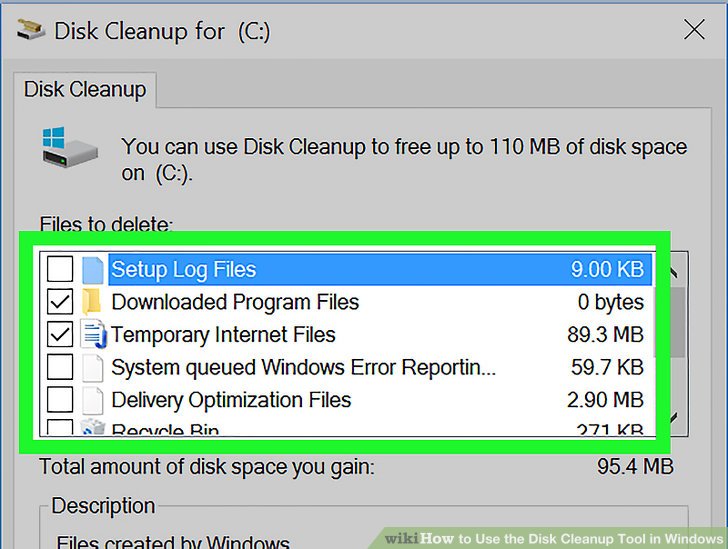
Disk Cleanup is quiet simple as well, & slightly time consuming. Good to do while taking a 15 minute break from your PC. Below is the process on how to do this process for Windows 7 & 10 Users.

Windows 10
1. In the search bar, (bottom left of screen), type disk cleanup.
2. Click on DISK CLEANUP to open the program.
3. On the left, check all the unchecked boxes, & click OK.

Windows 7
1. Click on Start
2. Type DISK CLEANUP to open the program.
3. Select DISK C, & click OK.
4. On the left, check all the unchecked boxes, & click OK

*****Note*****
Within the unchecked boxes, there’s an option for RECYCLE BIN. Make sure you know what you’re dumping, and are ready to do so before checking the box.