Pausing Windows 10 Updates

So, you’re running low on space, or just tired of the all the updates being installed on your computer, but what can you do. Windows 10 checks and installs updates automatically. Never fear…there is a solution. Rather than call the best Sherman Oaks computer repair guy, try the following. Below is step by step on how to manage pausing updates.

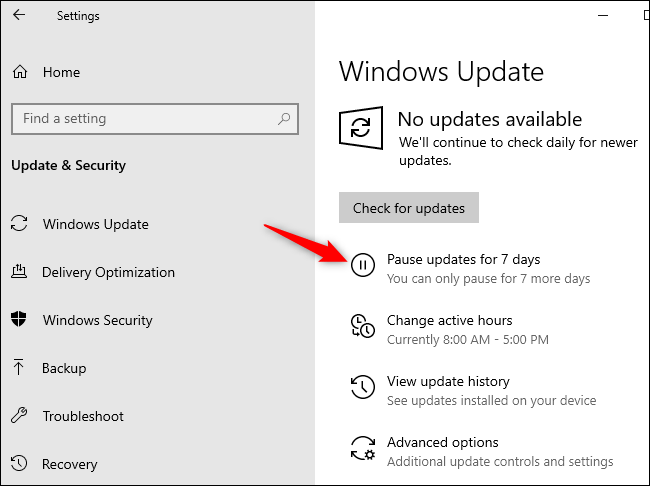
  1. Select Start > Settings > Update & Security > Windows Update .
  2. Select either Pause updates for 7 days or Advanced options. Then, in the Pause updates section, select the drop-down menu and specify a date for updates to resume.
WiFi Extending

So, you just moved into your new home, or new apartment. You got all your stuff, and you’re happy. Problem is, when the guy came for your home computer assistance to install your wireless router, he put it too far away from certain areas, and the signal is bad or is nonexistent in certain rooms. There is a simple solution to this issue. It’s called WiFi extending. You plug a Wifi Extender into the wall, halfway between the router, and the bad signal area, set it up, per it’s instructions, and BOOM!! Instant WiFi, and a good signal too. WiFi extenders support 2.4ghz, and 5ghz speeds, so no worries, they’ll both show up when it’s time to connect. WiFi extenders can be purchased online at Amazon Prime for free fast shipping. No need to spend more than $50. NetGear is what I go with. Below is a picture of a Common NetGear WiFi Extender. I pasted a link to it on Amazon as well, so you know where to go.

(NETGEAR WIFI EXTENDER)
https://amzn.to/3gFTLx4